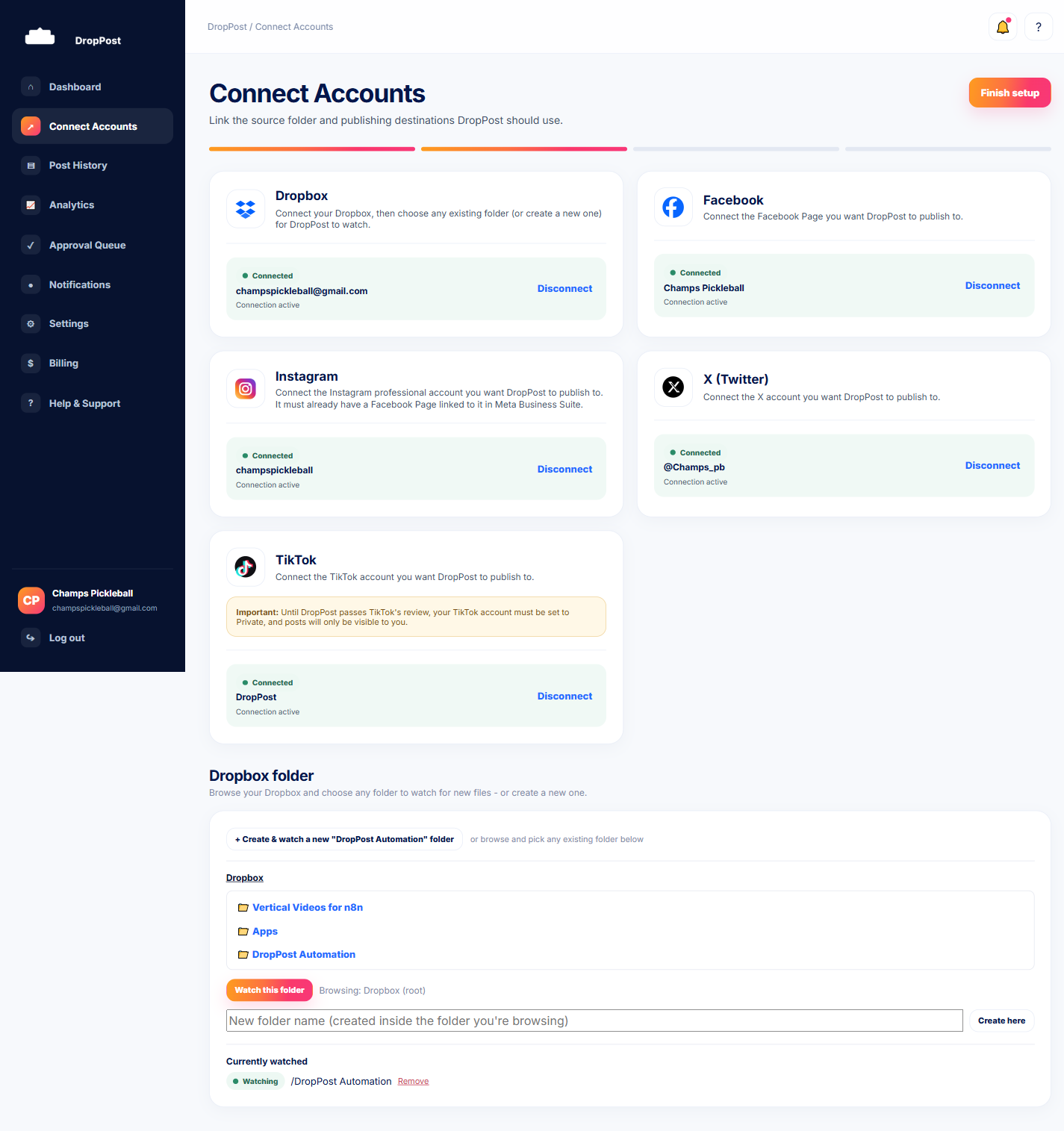
From the DropPost portal sidebar, click "Connect Accounts." This is the same page you used to connect Dropbox, and it's where you'll manage Facebook and Instagram too.
Help / Connecting Facebook & Instagram
Connecting Facebook & Instagram
Facebook and Instagram are connected together in DropPost, since Instagram publishing runs through a Facebook Page connection. This guide walks you through connecting your Facebook Page and seeing its linked Instagram account appear right alongside it.
What you'll need
Admin access to the Facebook Page you want to post to, and — if you also want Instagram posting — an Instagram professional account already linked to that Page.
Steps
1
Open Connect Accounts.
2
Click "Connect" on the Facebook card.
Find the Facebook card and click Connect to start the authorization flow.
3
Log into Facebook and grant the requested permissions.
You'll be taken to Facebook's own login screen. Log in and review the permissions DropPost is asking for — these are what let DropPost publish posts on your behalf — then approve them.
4
Select which Facebook Page to connect.
If you manage more than one Page, Facebook will ask you to choose which one to share with DropPost. Pick the Page you want your drops published to.
5
Check for the linked Instagram account.
Back in the DropPost portal, look at the Instagram card. If that Facebook Page has a professional Instagram account linked to it, DropPost picks it up automatically — you'll see it appear as connected without any separate login step.
Tip: Instagram publishing requires the Instagram account to be a Professional or Business account linked to the Facebook Page. A personal-only Instagram account won't show up to connect — convert it to a professional account in Instagram's own settings first, then link it to your Page, before returning here.
What happens next
Facebook (and, if eligible, Instagram) are connected and ready to receive drops. From here you can connect X or TikTok, or move straight on to your first drop.