
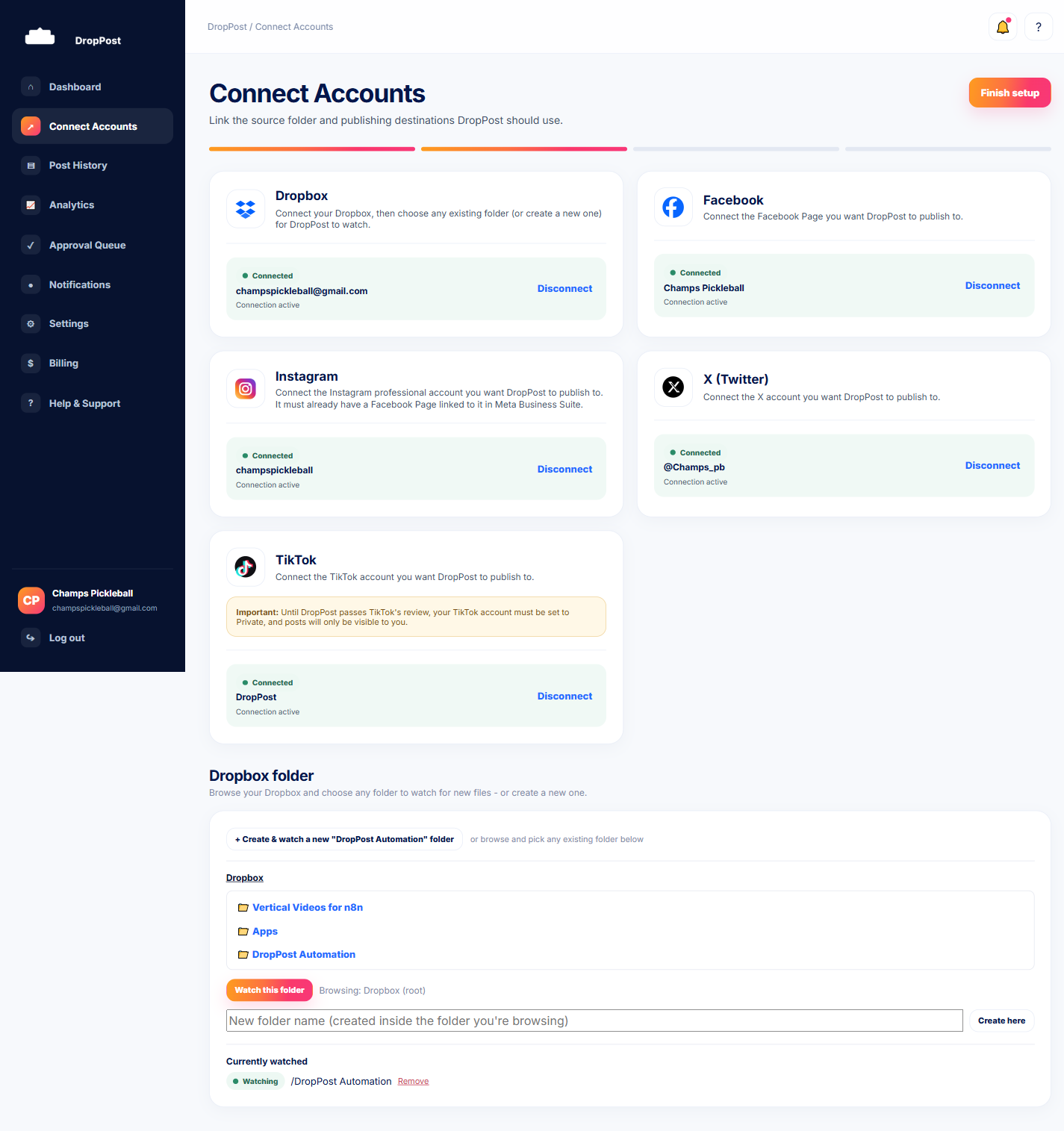
From the DropPost portal sidebar, click "Connect Accounts."
Help / Connecting X (Twitter)
Connecting X (Twitter)
Connecting X lets DropPost publish your drops straight to your X account alongside whatever other platforms you've set up. The authorization happens on X's own site, so DropPost never sees or stores your X password. This guide covers the whole flow.
What you'll need
A DropPost account with at least Dropbox already connected, and the login for the X account you want to post from.
Steps
1
Open Connect Accounts.
2
Click "Connect" on the X card.
Find the X card among the connection options and click its Connect button.
3
Log in on X's own authorization screen.
You'll be redirected to X's login page. Log in with your X credentials — this step happens entirely on X's site.
4
Grant read/write access.
X will show you what DropPost is requesting: read/write access, which is what lets DropPost publish posts on your behalf. Approve it to continue.
5
Confirm the account shows as connected.
You'll land back on the Connect Accounts page in DropPost, and the X card should now show your account as Connected.
Heads up: If a connected X account ever needs reconnecting — for example after changing app permissions or revoking access on X's side — just disconnect and reconnect from this same Connect Accounts page.
What happens next
X is connected and ready to receive drops from your watched Dropbox folder. From here you can connect TikTok, or move on to running your first drop.