
From the DropPost portal sidebar, click "Connect Accounts."
Help / Connecting TikTok
Connecting TikTok
TikTok rounds out the list of platforms DropPost can publish to. Connecting it works the same way as the other platforms: you authorize through TikTok's own login screen, and DropPost never sees your TikTok password. This guide covers the connection steps and a note on TikTok's own review process.
What you'll need
A DropPost account with Dropbox already connected, and the login for the TikTok account you want to post from.
Steps
1
Open Connect Accounts.
2
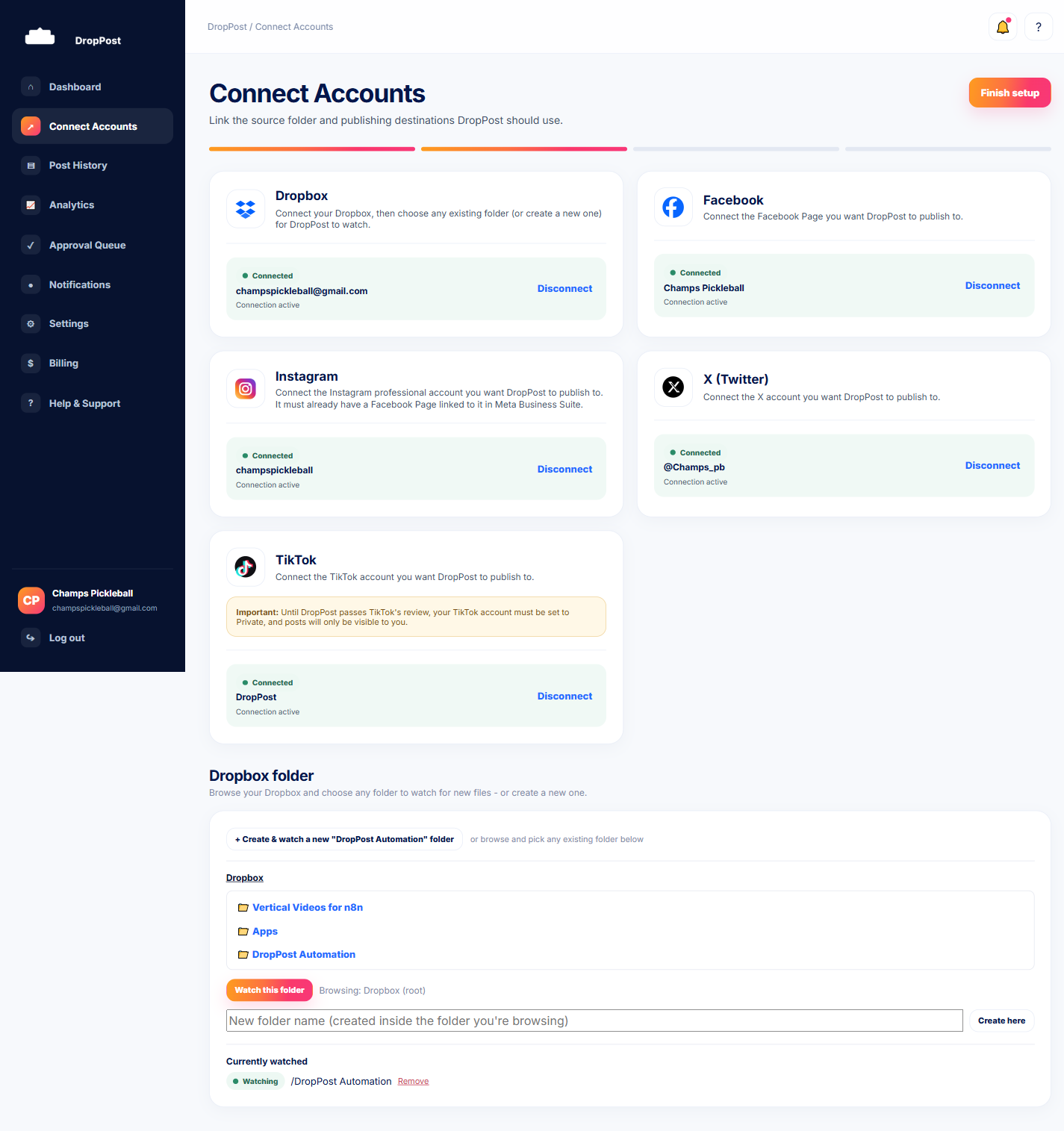
Click "Connect" on the TikTok card.
Find the TikTok card and click its Connect button to begin.
3
Log in on TikTok's own authorization screen.
You'll be redirected to TikTok's login page. Log in with your TikTok credentials there.
4
Grant posting permission.
TikTok will show you the permissions DropPost is requesting, including the ability to post on your behalf. Approve them to finish connecting.
5
Confirm it shows as connected.
Back in the DropPost portal, check the TikTok card on the Connect Accounts page — it should now show as Connected.
Heads up: TikTok connections are currently subject to TikTok's own platform review and approval process for the app, so availability can vary by account type. If you hit a limit or an unexpected wall while connecting, reach out to DropPost support rather than guessing at a workaround — they can tell you exactly where things stand.
What happens next
TikTok is connected and ready to receive drops. With at least one platform connected alongside Dropbox, you're ready to run through your first real drop.