
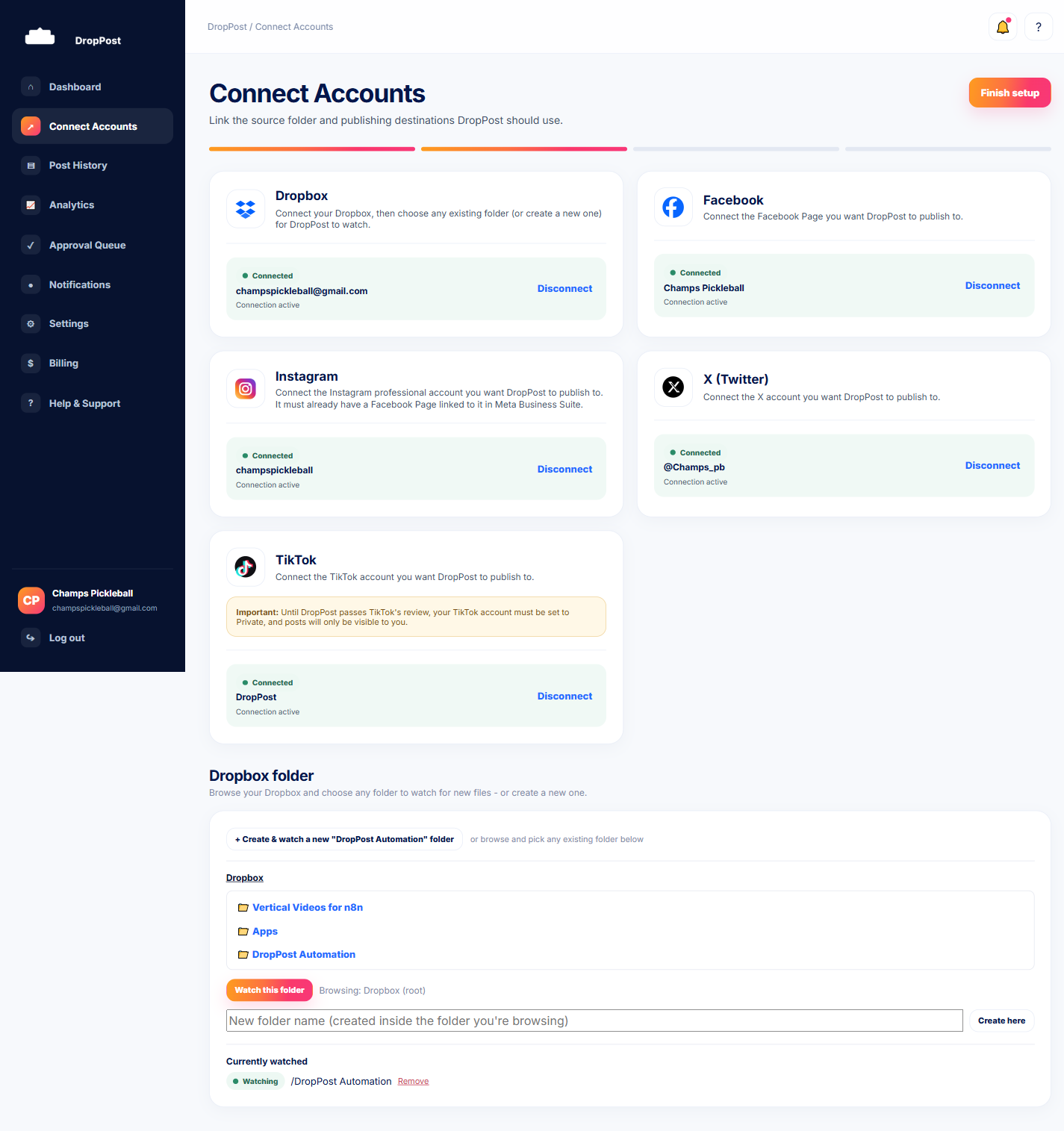
Before you drop anything, do a quick check on the Connect Accounts page: Dropbox should show your watched folder, and at least one platform card should show as Connected. If you haven't set these up yet, work through the earlier connection guides first.
Help / Your first drop, start to finish
Your first drop, start to finish
This is the moment DropPost is built for: you drop a photo or video into your watched Dropbox folder, and it shows up published on your social accounts without you touching another button. This guide walks through that entire journey end to end — from dragging a file into Dropbox, to watching it move through DropPost, to seeing the finished, published post with real links to each platform. If you want to see the whole product work in one sitting, this is the guide to follow.
What you'll need
A DropPost account with Dropbox connected and at least one social platform (Facebook, Instagram, X, or TikTok) already connected. A real photo or video file you're ready to have published.
Steps
1
Confirm your connections are in place.
2
Open your watched Dropbox folder.
Open Dropbox — either in your browser, the desktop app, or the mobile app — and navigate to the exact folder you chose when you connected Dropbox to DropPost. This is the only folder DropPost is watching, so make sure you're in the right one.
3
Drag a real photo or video into the folder.
Pick a real photo or video you want published and drag it into that Dropbox folder. That's the entire input step on your end — no upload button inside DropPost, no extra form to fill out.
4
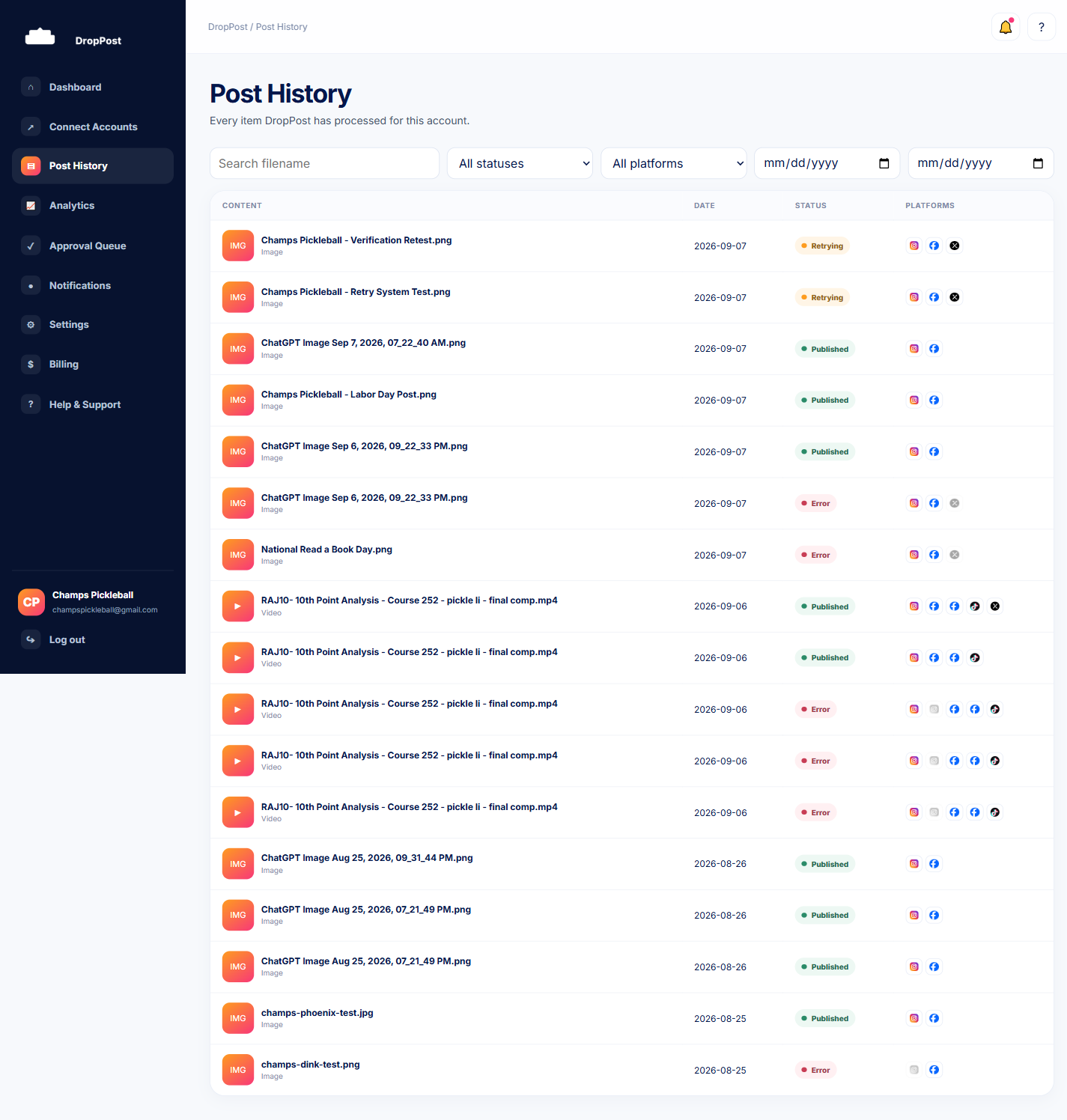
Switch back to the DropPost portal and open Post History.
Head back to the DropPost portal and click "Post History" in the sidebar. Within moments, your new file should appear as a row in the table — DropPost detects new files in the watched folder near-instantly, with a periodic backstop check running as a safety net in case anything is ever missed.
5
Watch it move through detection, captioning, and publishing.
Keep an eye on that row in Post History. You'll see its status update as DropPost works through the pipeline: the file is detected, an AI-written caption is generated for it, and then it's published out to every platform you've connected and routed for that folder.
6
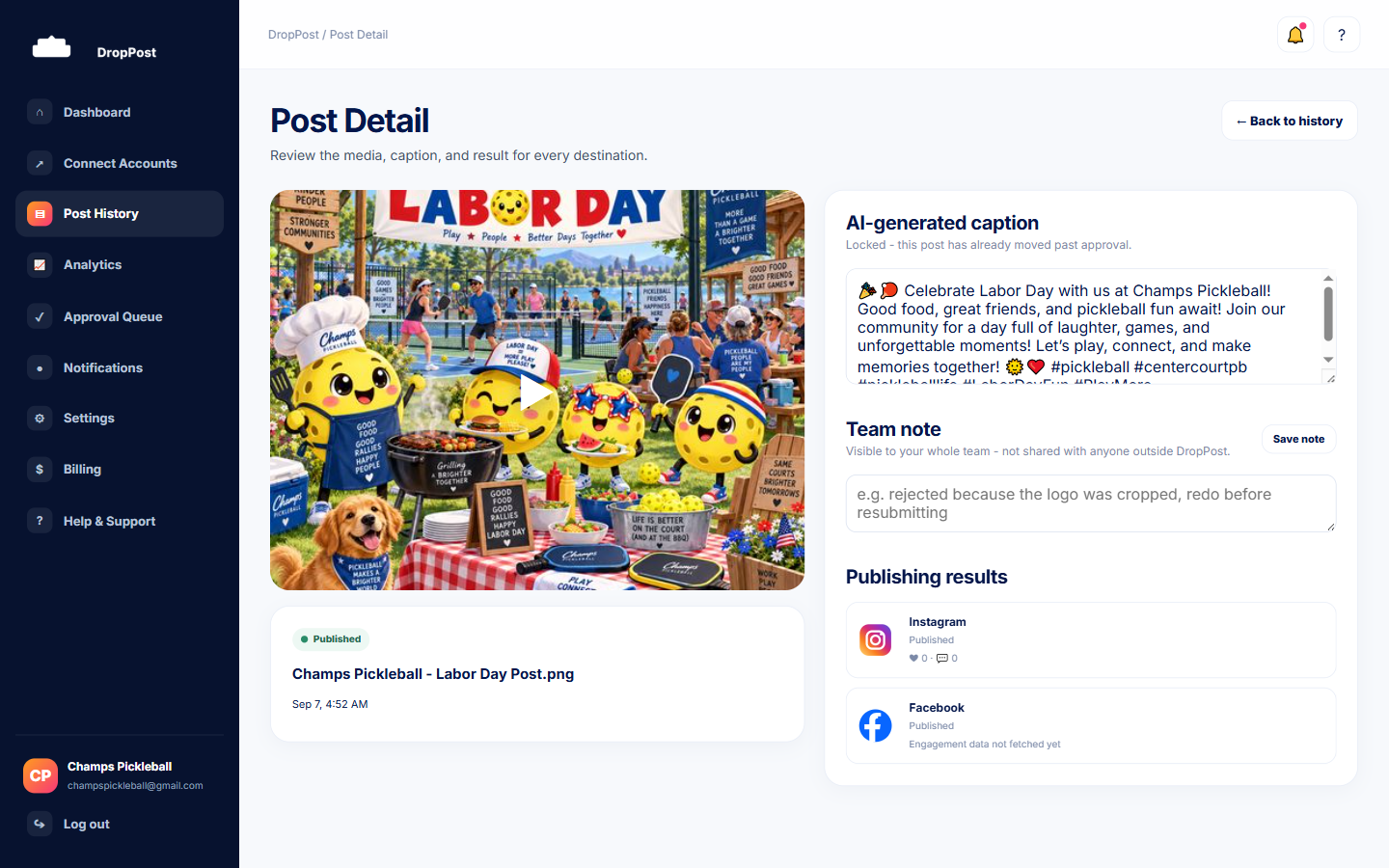
Click into the post to open its Post Detail page.
Once the status shows it's published, click on that row to open its Post Detail page. This is where you see the full picture: the caption DropPost wrote, and — once everything's gone through — the real, clickable links to the post on each platform it published to.
Tip: If Approval Mode is turned on in Settings, your drop won't publish right away — it'll appear in the Approval Queue instead, where you can edit the caption and then Approve or Reject it. See Approval Mode for how that works.
What happens next
Your first drop is published, and you now know exactly what to expect every time a new file lands in that Dropbox folder: detection, captioning, publishing, and a Post Detail page with the finished, live links. From here it's just a matter of dropping files in as you normally would.