
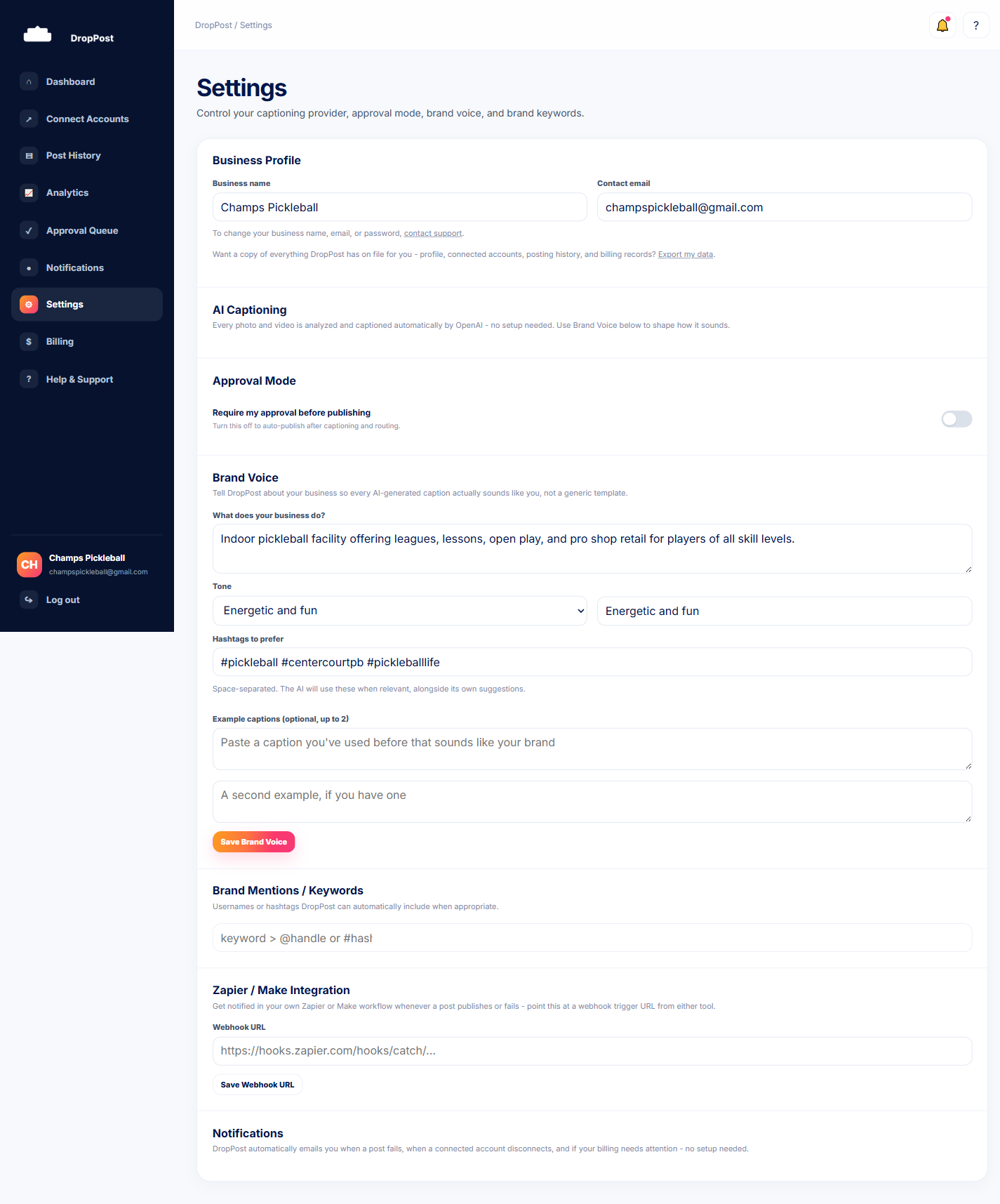
From the portal navigation, go to Settings. This is where your account-level options, including data export, live.
Help / Exporting your data
Exporting your data
DropPost gives you a one-click way to export your account's data whenever you want a copy of it. It's a good idea to run an export before making any major change to your account, so you always have a record on hand.
What you'll need
Just access to your account settings — no special permissions or setup are required.
Steps
1
Open Settings
2
Find the export option
In Settings, look for the data export option. It's a single click — no forms to fill out and no waiting on a support request.
3
Run the export
Clicking the export option produces your account's data as a downloadable file. This is your own copy, independent of anything stored in the DropPost portal itself.
Exporting is non-destructive — it just produces a copy of your data and doesn't change anything in your account, so there's no harm in running it more than once.
What happens next
Keep the export somewhere safe. It's a useful habit to run one before switching plans, changing connected accounts, or deleting your account — so you always have your own record, regardless of what happens next in the portal.