
The single most common cause is dropping the file into a different Dropbox folder than the one DropPost is actually watching. Open Connect Accounts to see the exact watched folder path, and confirm your file landed there.
Help / "Why didn't my file get picked up?"
"Why didn't my file get picked up?"
If you dropped a photo or video into Dropbox and it hasn't shown up in your Post History, there are a few common causes worth checking in order before assuming something is wrong.
What you'll need
Access to your Dropbox account and your DropPost Connect Accounts page.
Steps
1
Check the folder
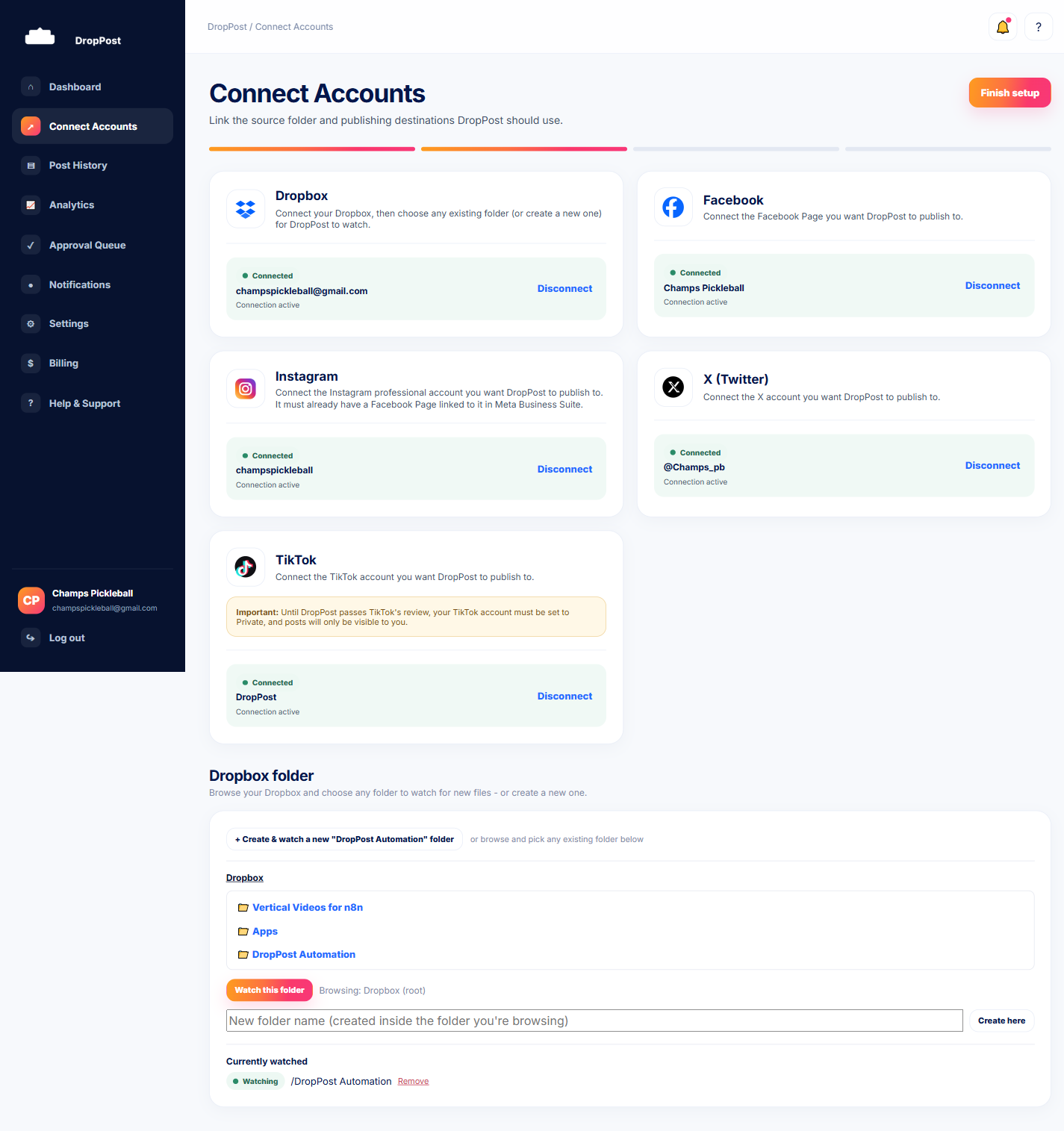
2
Check the file type
DropPost only picks up supported photo and video formats. If the file is an unsupported type, it won't be detected — try re-exporting it as a standard photo or video format and dropping it again.
3
Give it a few minutes
Detection is near-instant in almost all cases. There's also a periodic backstop check running as a safety net, so on the rare occasion something is missed initially, it self-corrects within a few minutes rather than being lost for good.
4
Contact support if it's still missing
If it's been much longer than a few minutes and nothing has appeared in Post History, that's exactly when to reach out. Use the Contact Support form on the Help & Support page.
Most missing-file cases turn out to be the wrong Dropbox folder — checking Connect Accounts first saves the most time.
What happens next
Once the file is confirmed in the correct folder and in a supported format, it should appear in Post History shortly, moving through DropPost's normal captioning and publishing flow.