
Multi-folder routing only unlocks on the Agency plan. If you're on a different plan, upgrade first from Billing.
Help / Multi-folder routing (Agency plan)
Multi-folder routing (Agency plan)
If you manage more than one brand or location, multi-folder routing lets a single DropPost account handle all of them. You connect a separate Dropbox folder per brand or location, connect the social accounts for each, and then use a routing grid to control exactly which folder's drops go to which accounts. This feature is available on the Agency plan ($24.99/mo, unlimited folders and connected profiles).
What you'll need
An active Agency plan, plus the Dropbox folders and social account logins for each brand or location you want to manage.
Steps
1
Confirm you're on the Agency plan.
2
Open Connect Accounts.
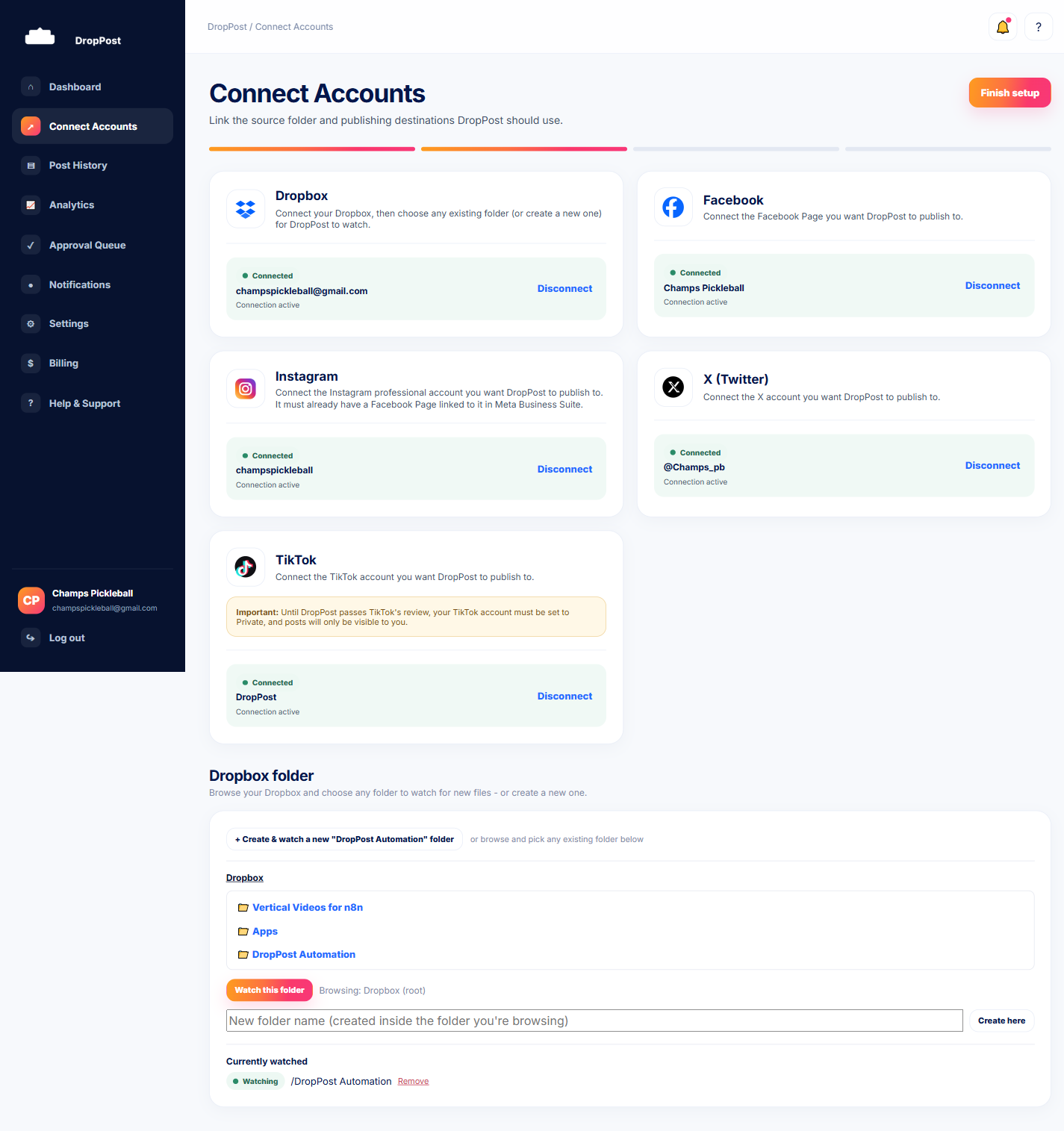
Go to the Connect Accounts page in the portal — this is where you'll add each additional Dropbox folder and social account.
3
Connect an additional Dropbox folder.
Click to connect another Dropbox folder — for example, the folder for a second location. Repeat for each folder you need.
4
Connect additional social accounts.
From the same page, connect any additional Facebook, Instagram, X, or TikTok accounts you need — for instance, a separate Instagram profile per location.
5
Open Settings and find the routing grid.
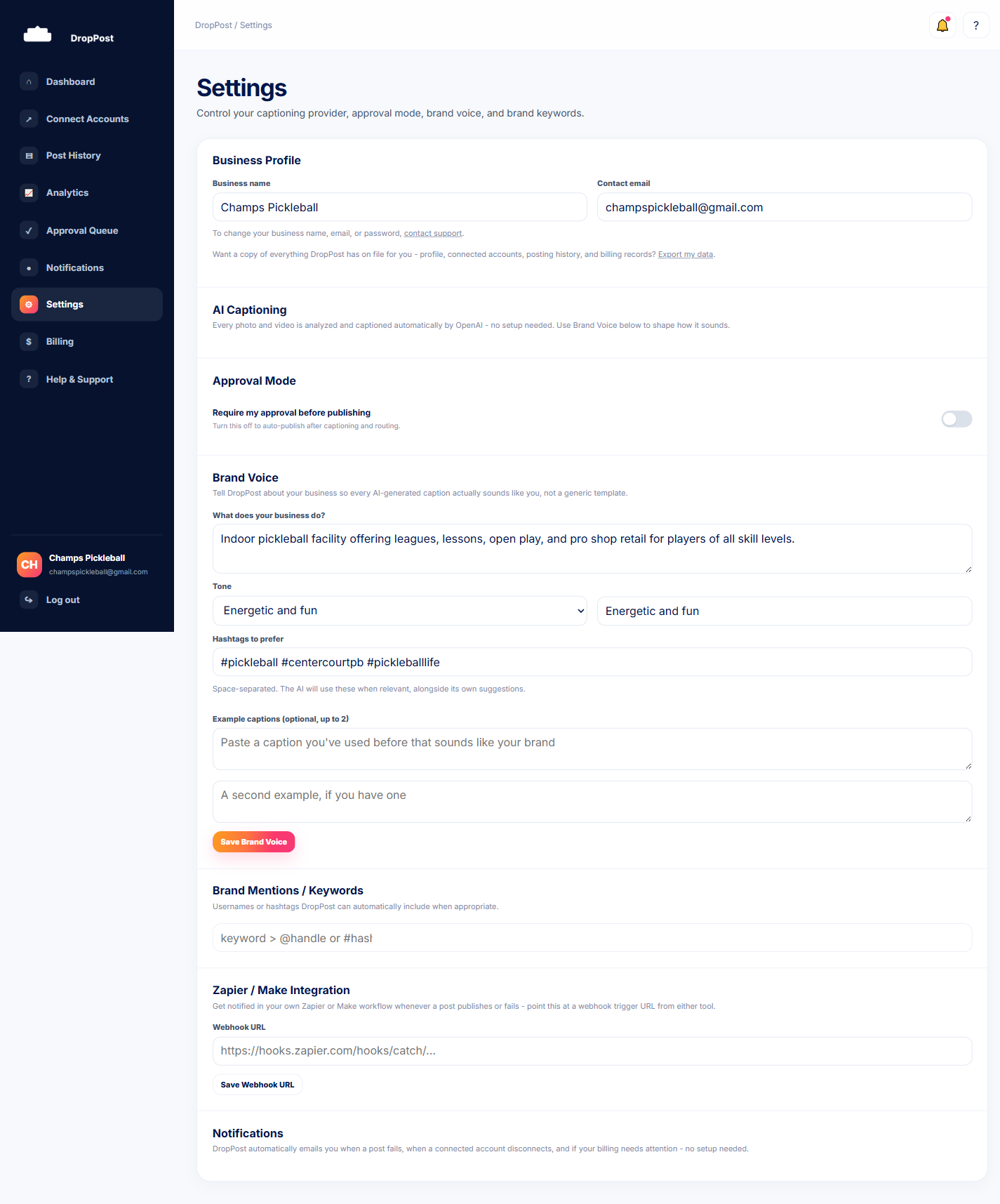
Head to Settings, where the routing grid lists each connected folder against each connected account.
6
Map folders to accounts.
For each folder, check the accounts it should publish to. A drop in that folder will only go to the accounts checked for it.
7
Save your changes.
Click Save. New drops in each folder now route only to the accounts you've mapped for that folder.
Tip: Each folder can route to a different combination of accounts — a location's folder doesn't have to post everywhere every other location posts. Set the grid up per location's real audience rather than checking every box.
What happens next
Each connected folder now publishes only to the accounts you've mapped for it, so one DropPost account can run several brands or locations without their posts crossing over.