
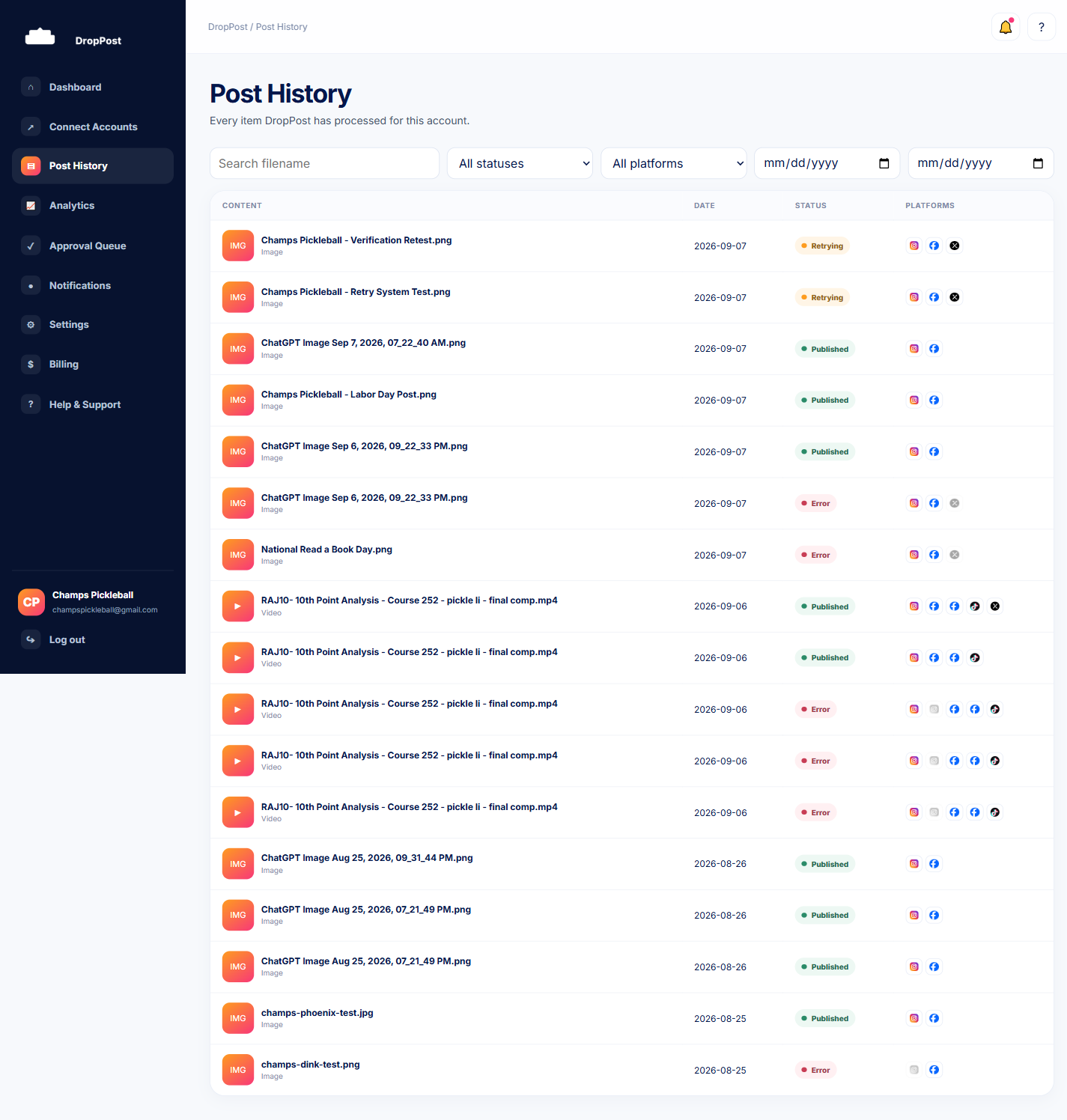
From the portal navigation, click Post History. Every item DropPost has processed appears here, most recent first, each with its thumbnail, filename, and date.
Help / Reading Post History & Post Detail
Reading Post History & Post Detail
Post History is the record of every photo and video DropPost has ever processed for your account. This guide covers how to search and filter it, what each status means at a glance, and how to open an individual post to find its real published link on each platform.
What you'll need
Just an active DropPost account with at least one processed post — there's nothing to set up here.
Steps
1
Open Post History
2
Search or filter the list
Use the search box to find a post by filename, or use the status and platform filters to narrow things down — for example, show only posts that went to Instagram, or only posts currently marked Retrying.
3
Read the status column
Each row shows a status — Published, Retrying, or Error — so you can tell at a glance whether anything needs a look, without opening every post individually.
4
Open a post
Click any row to open its Post Detail page, showing the original file, the AI-written caption, and a breakdown of what happened on each connected platform.
5
Find the published link
On Post Detail, each platform that published successfully shows a real link to the live post — click it to see exactly what your audience sees on Facebook, Instagram, X, or TikTok.
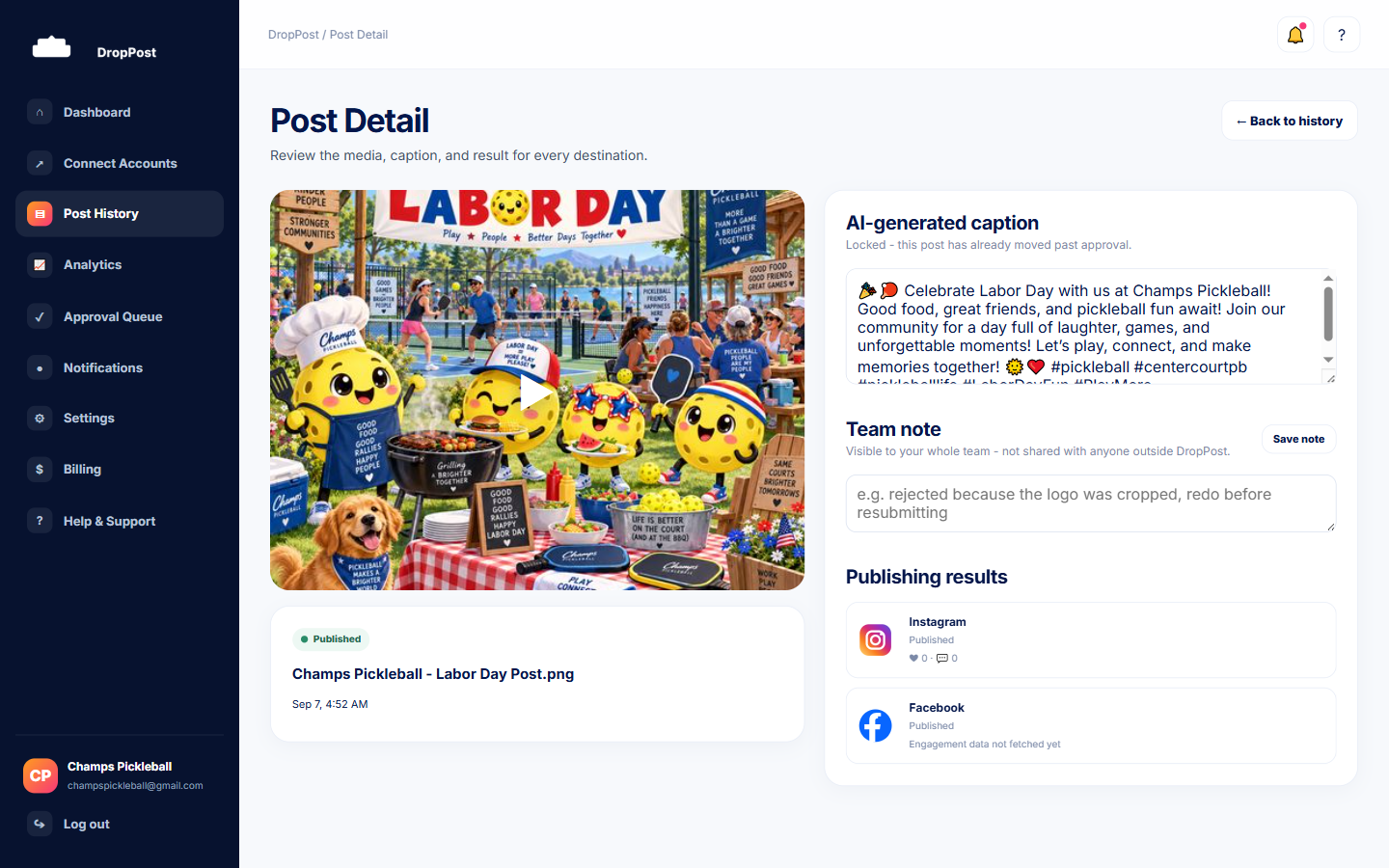
A platform showing a broken or blank link usually means that platform failed to publish, and DropPost is either still retrying it or has surfaced an error for it. See the guide on what "Retrying" means, and the guide on why a post failed, for what to do next.
What happens next
Post History and Post Detail update in place as DropPost works through retries, so you can leave a post open or come back to it later and see its status change without doing anything yourself.